


Options Radars Center Guide
العربيةLearn how to navigate the five options radars, understand shared filters and fields, and choose the correct specialist guide for each signal family.
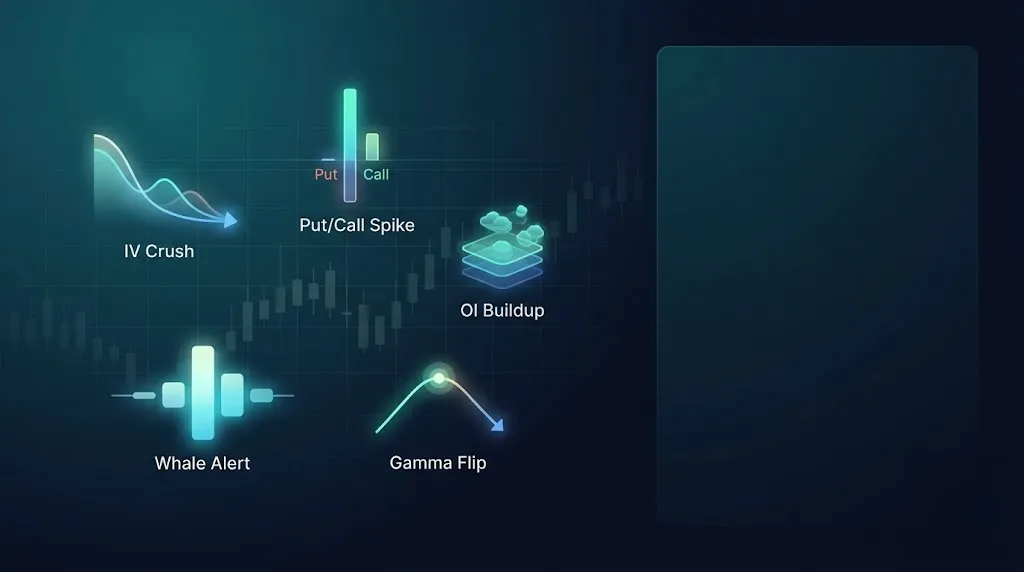
Options activity can change in several ways: volatility, put/call balance, unusual contract activity relative to open interest, large trades or gamma regime. The radar center puts these families in one workspace so you can choose the question first, filter its signals and open the supporting detail.
Use the page controls and filters
Select results
Use symbol, direction, period and minimum score, then choose page size. Favorites-only shows your saved items.
Radar-specific filters
Extra filters depend on the tab: IV Rank, put/call ratio, unusual count, large-trade details or target gamma regime.
Sorting and pages
Choose the sort column and direction, then navigate result pages. The first page is not necessarily the complete result set.
When results are absent
Distinguish empty results from an error or a plan lock. Broaden filters for an empty list, retry errors and inspect plans for locked access.
Fields and concepts
Radar tabs
Switch among the five canonical signal families while keeping the center's shared workflow.
Filters
Narrow time, symbol, direction, premium, ratios, regime, or other fields supported by the selected radar.
Signal time and age
Distinguish current observations from historical rows whose context may have changed.
Quality and freshness
Indicate whether the underlying inputs were current and complete enough for the scan.
Favorite and chart actions
Save a signal for review or open supporting price, contract, or GEX context.
Plan and access state
Explain locked tabs without hiding which capability exists or where to review plan access.
Review workflow
- Select the radar family that answers the intended question.
- Confirm the tab's data freshness and read its specialist guide.
- Apply a small set of meaningful filters and review more than one result.
- Open the relevant chart, chain, flow, or GEX page to validate the source fields.
- Save observations for comparison, not as substitutes for independent risk analysis.
Useful supporting context
- A clear match between the research question and selected radar.
- Current source data and a recent signal time.
- Underlying evidence available on another Exelza surface for verification.
- Several fields agreeing without being duplicates of the same input.
Cautions
- Applying the meaning of one radar to another.
- Comparing raw scores across scanners with different rules.
- Using old signals after price, volatility, or open interest changed.
- Treating a locked or unavailable source as neutral confirmation.
Risk and limitations
Related guides
Choose the radar that answers the right question
The center unifies navigation and shared filters, but every radar detects a different condition and needs its specialist guide.
- Use IV Crush for event and volatility-repricing risk, Put/Call Spike for an extreme ratio, and Unusual OI for position concentration that needs next-day confirmation.
- Use Whale Alert for large-premium executions and Gamma Flip for a modeled regime transition around zero gamma.
- Apply shared ticker, direction, score, watchlist, and time filters before comparing result counts.
- Open the row source and specialist guide because equal scores from different radars do not represent identical evidence.
- Combine independent evidence only after checking that two radars are not derived from the same underlying trade set.
Page components explained
Choose an options radar
Each tab asks a different question: volatility change, put/call balance, open-interest growth, large trades or a gamma regime change. Read the selected radar's guide before comparing its results with another tab.
Options-radar filters
Use only the filters shown for the selected radar. Symbol, direction, period and score narrow the list; contract and gamma criteria depend on the radar. A score is a ranking, not a win rate.
Options-radar results
Read the signal time and the radar-specific values, then open the stock or contract for context. Compare like-for-like periods and expiries. Empty results mean no matches for the selected conditions.
Result availability
A plan restriction, a load error and an empty result are different states. Check the message: upgrade only for a plan restriction, retry a failed load, or broaden filters when no matches were found.
Language
Use the flag to switch the interface language. Check the currency shown on subscription and payment pages after changing language; trading symbols keep their original spelling.
Light and dark mode
Choose the appearance that makes text and chart details comfortable to read. Changing the theme affects the display, not the underlying data or signals.
Page layout
Use this control to change the available page layout. It changes how much space the interface uses, not the meaning of the displayed values.
Fullscreen
In the signed-in app, expand the site to gain more room for charts and tables. Use the control again or Escape to leave browser fullscreen.
Notification bell
Review recent notifications and their timestamps here. The badge counts unread notifications; it is not a count of unreviewed trading opportunities. Delivery channels and rules are managed in alert subscriptions.
Account menu
Open account settings, subscription details and other personal links here. Use sign out when you finish on a shared device.