


Put/Call Ratio Spike Guide
العربيةUnderstand why the volume put/call ratio triggered an alert and how OI and premium ratios provide supporting context.
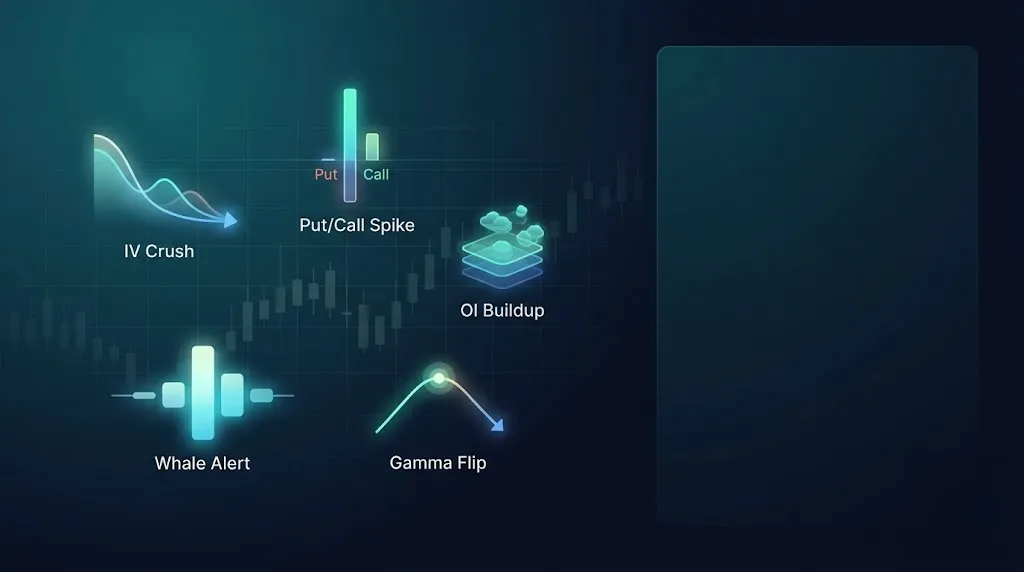
Is options trading concentrated in puts or calls? This radar finds readings beyond configured volume-ratio limits so you can inspect the totals behind them. It does not compare the ratio with the stock's history to establish an anomaly. The activity may be hedging rather than a price-direction bet.
Use the page controls and filters
Select results
Use symbol, direction, period and minimum score, then choose page size. Favorites-only shows your saved items.
Radar-specific filters
Inspect the volume put/call ratio filter for this radar. Start with one condition and broaden an empty search.
Sorting and pages
Choose the sort column and direction, then navigate result pages. The first page is not necessarily the complete result set.
When results are absent
Distinguish empty results from an error or a plan lock. Broaden filters for an empty list, retry errors and inspect plans for locked access.
Fields and concepts
What triggered the alert?
Put volume divided by call volume triggers it. Current settings qualify ratios at or above 1.5, or at or below 1 / 1.5 (about 0.67), with trading present. Neither the OI ratio nor the premium ratio triggers this radar.
Total call and put volume
Read both totals alongside the ratio. For example, 3,000 puts and 1,000 calls give a ratio of 3. Very small call volume can also produce a high ratio.
Which figures provide context?
The OI ratio compares outstanding puts with calls at the latest available update. The dollar ratio compares estimated put and call activity value. They may differ from the volume ratio; they provide context, not additional trigger conditions.
Direction label
Bearish means put volume dominates; bullish means call volume dominates. Contract counts alone do not tell us whether trades were buys, sells or hedges.
How is the score calculated?
It is the absolute distance of the volume ratio from 1, multiplied by 50 and capped at 100. A ratio of 1.5 produces 25 points. It is not a historical comparison, success probability or symmetric measure of bullish and bearish strength.
Period and missing data
Check the signal time and selected period. A missing ratio is not zero: inspect available totals before interpreting it. Changing the alert display period does not calculate a historical baseline.
Review workflow
- Start with the volume ratio: it triggered the signal.
- Inspect put and call totals to distinguish large activity from a small opposite side.
- Use OI and premium ratios as context, remembering that each measures something different.
- Open chain and flow to inspect expiries, strikes and related trades.
- Compare activity with the chart, news and volatility; a direction color is not a trade instruction.
Useful supporting context
- Meaningful absolute volume behind the ratio.
- An understandable agreement or difference between volume, OI and premium.
- A current reading with contracts you can inspect in the chain.
- Price or event context explaining why the activity matters.
Cautions
- A high ratio caused only by low call activity.
- Treating protection demand as a certain forecast of falling stock prices.
- Treating OI as a live count of today's trades.
- Assuming the score proves a historical anomaly or that all symbols behave alike.
Risk and limitations
Related guides
Investigate the imbalance
After reading the alert, inspect the chain for expiries and strikes carrying the volume, then check flow for related trades. Fund hedging can differ from single-stock activity. Comparing a ratio with its own history is a separate study requiring earlier data; this radar does not perform that study or incorporate its result in the score.
Page components explained
Narrow the signals
Filter by stock, period, price or the available signal criteria. Start broad and add conditions gradually. The timeframe belongs to the signal, while the date range controls when signals appeared.
Period, timeframe and direction
Use the period to choose recent or older signals, the timeframe to choose the candle scale, and direction to separate bullish and bearish readings. These settings answer different questions.
Read the signal list
Start with symbol, signal time and timeframe, then read direction and the radar-specific details. Open a signal to inspect it on the chart. Scores are ranking aids, not measured win probabilities.
Saved signals and watchlists
Favorites retain specific signals for review. A watchlist tracks stocks and can include many signals for each one. Check which control you are using before narrowing the list.
Supporting context
These switches keep signals with the selected news, block-volume, compliance or options context. Presence of extra information is not proof that the signal is stronger or that all sources agree.
Inspect a signal
Compare the signal marker with the price at that time and the moves that followed. Confirm the timeframe and timestamp. A historical chart shows what happened; it does not guarantee the next signal will behave the same way.
Automatic refresh
Refresh checks for new readings. It does not make an old source current. Check the reading's timestamp and any warning before using it.
Language
Use the flag to switch the interface language. Check the currency shown on subscription and payment pages after changing language; trading symbols keep their original spelling.
Light and dark mode
Choose the appearance that makes text and chart details comfortable to read. Changing the theme affects the display, not the underlying data or signals.
Page layout
Use this control to change the available page layout. It changes how much space the interface uses, not the meaning of the displayed values.
Fullscreen
In the signed-in app, expand the site to gain more room for charts and tables. Use the control again or Escape to leave browser fullscreen.
Notification bell
Review recent notifications and their timestamps here. The badge counts unread notifications; it is not a count of unreviewed trading opportunities. Delivery channels and rules are managed in alert subscriptions.
Account menu
Open account settings, subscription details and other personal links here. Use sign out when you finish on a shared device.