


Options Flow Guide
العربيةUnderstand the options tape, side classification, premium, sweeps, blocks, filters, freshness, and the checks needed before interpreting unusual activity.
Price shows where the stock moved; flow helps you see which option trades accompanied it. Use the tape to find repeated or large activity worth investigating, then check the contract and stock. A trade's size does not reveal its owner or purpose.
Use the page controls and filters
Presets and period
Start with a preset and read its short description. Check the displayed period, then inspect its filters instead of assuming that a preset shows the whole market.
Trade and contract filters
Narrow symbols, call/put type, execution side, trade classification, price, premium, size and expiry. Each condition reduces results; reset before researching a different question.
Watchlists and selected contracts
A watchlist restricts the search to its symbols. A link from another tool may restrict it to a contract set; inspect that chip. A contract-set load error does not mean a broad search succeeded.
Columns and density
Show, hide and reorder columns from the menu. Compact density combines some fields while comfortable density separates them. The hidden-column count helps restore missing information.
Missing or older data
Trades may arrive before some enrichment fields. Read the notice and timestamp; a missing measure is not zero. Auto-refresh does not turn a historical view into current data.
Fields and concepts
Call or put
Identifies the contract type, not whether the full position is bullish or bearish.
Execution side
Classifies the print relative to the observed bid and ask; NBBO movement and complex orders can make the label uncertain.
Premium and size
Estimate the trade's dollar value and contract count. Compare them with the contract's normal liquidity.
Sweep or block
Describe execution shape. A sweep may cross venues quickly; a block is a large print and can still be part of a hedge or spread.
Volume versus open interest
Provides context for unusual activity but does not, by itself, prove a new opening position.
Expiry, strike, and moneyness
Define the contract's time horizon and relationship to the underlying price.
Review workflow
- Start with a defined time window and confirm the flow feed's freshness state.
- Filter by symbol, premium, side, type, expiry, and execution pattern without overfitting to one field.
- Open the contract and underlying charts to compare the print with price, volatility, volume, and events.
- Look for repeated related trades and consider whether they may be legs of a spread.
- Record what would invalidate the interpretation; do not infer an institution's direction from one print.
Useful supporting context
- Repeated activity in related contracts with coherent timing.
- Execution and premium that are meaningful relative to the contract's normal activity.
- A liquid contract with current quotes and verifiable underlying context.
- Alignment with independently observed price structure or a known event.
Cautions
- A single print with no follow-through or a stale quote context.
- Deep in-the-money contracts that may substitute for stock or hedge another exposure.
- Same-timestamp legs that suggest a spread rather than an outright bet.
- Treating call as automatically bullish or put as automatically bearish.
Risk and limitations
Cluster: small executions grouped into one row
Notable activity can consist of repeated small executions rather than one large trade. The site groups executions close in time for the same contract and rounded price level when its clustering conditions are met. A Cluster row is an aggregate, not a single execution or proof of one trader.
Read the row
Size is the combined contract count, premium is the combined value, and price is volume-weighted. Time belongs to the last execution. The conditions badge reports grouped execution count, which differs from contract count in Size.
How is it different from Sweep?
Sweep is an execution classification from trade data. Cluster groups nearby small executions under the site's rules. Grouping alone does not establish that one order swept several venues.
How is it different from Multi-Leg?
Cluster concerns the same contract. A multi-leg strategy may use different strikes, expiries or contract types. A cluster alone is not a complete strategy or confirmed hedge.
- Open Filters and the trade-classification group.
- Leave only Cluster checked and clear the other types. Results update as selections change.
- Check period, symbol, minimum premium and other conditions: they still restrict results. If empty, broaden one condition at a time.
- Compare execution count in Conditions with Size, Premium and Time, then open the contract chart.
- To return to all types, select all. Clearing every type also shows all types; it does not request an empty list.
Related guides
Trade classifications
| Type | What it means |
|---|---|
| Sweep | A fast order filled across several venues or price levels; it indicates urgency, not guaranteed conviction or direction. |
| Block | A large trade filled at one level, often negotiated or institutional. |
| Whale | An exceptionally large premium trade under the current classification rules. |
| Multi-Leg | Part of a spread or another multi-leg structure whose complete payoff cannot be inferred from one leg. |
| Floor | A trade associated with exchange-floor activity or professional market participants. |
| Cluster | Nearby small executions for the same contract and price level grouped into one row. Read execution count in Conditions; this is not a single trade or proof of one trader. |
Summary cards
| Card | Meaning |
|---|---|
| Total Trades | Number of rows in the current result set. |
| Total Premium | Combined dollar premium in the current result set. |
| Call Premium | Premium attributed to calls; it can include buys, sells, and multi-leg activity. |
| Put Premium | Premium attributed to puts; it can reflect bearish positioning, protection, or other structures. |
| Sweeps | Count of sweep-classified trades. |
| Sentiment | A summary bias from the current call-put and execution mix, not a price forecast. |
Complete table-column reference
| Column | Meaning |
|---|---|
| Time | Execution timestamp; the moon marker identifies activity outside regular hours. |
| Type | Sweep, Block, Whale, Multi-Leg, Floor, or another supported classification. |
| Trade Side | Estimated buy- or sell-side execution; it does not prove opening versus closing without complete position data. |
| Premium | Trade notional for the option contract calculation. |
| IV | Implied volatility at or near the event; the current interface highlights readings above 80% as high-volatility context, not as a trade signal. |
| DTE | Days remaining to expiration; the interface marks 0DTE in red and fewer than seven days in yellow to emphasize decay and expiry risk. |
| Greeks | Combined EMS, BRS, EVS, VES, and burn-risk context when available. |
| Score | Relative impact score built from nine factors: classification, premium, trade side, DTE, size, EMS, BRS, EVS, and VES. It is not probability of profit. |
| Conditions | Execution flags such as Auction, Cross, Multi-Leg, or After Hours. |
Advanced filters and presets
- Filter by one or more symbols, classification, Call or Put, estimated trade side, minimum premium, and expiry window.
- The minimum-premium shortcuts are $10K, $50K, $100K, $500K, and $1M; a larger premium measures notional size, not directional certainty.
- Special flags can isolate volume above open interest, out-of-the-money contracts, or OPEX-related activity where supported.
- All is the broadest view; Conservative widens duration and delta; Balanced is the practical default; Aggressive favors faster momentum; Speculative accepts higher risk for larger-move candidates.
- Presets change filters and remain editable. They are starting points, not guarantees.
- Prioritize the source time, side estimate, conditions, liquidity, and underlying chart before the ranking or color.
Practical reading sequence
- Use sweeps as a queue for review because they can show urgency, while still checking side, conditions, liquidity, and multi-leg context.
- Treat a sharp sentiment-bar change as a prompt to inspect the underlying trades, not as an entry signal.
- Use $100K and higher as an optional size filter when appropriate, then compare the result with normal liquidity for that symbol.
- Trade Side estimates buyer- or seller-initiated execution; it cannot prove that a position was opened or closed.
- Open the contract chart to compare price, volume, open interest, the underlying move, and the event timestamp.
Visual walkthrough of options flow
The screenshot combines the preset strip, market summary, bull/bear balance, and contract-level tape. Read those layers in that order.
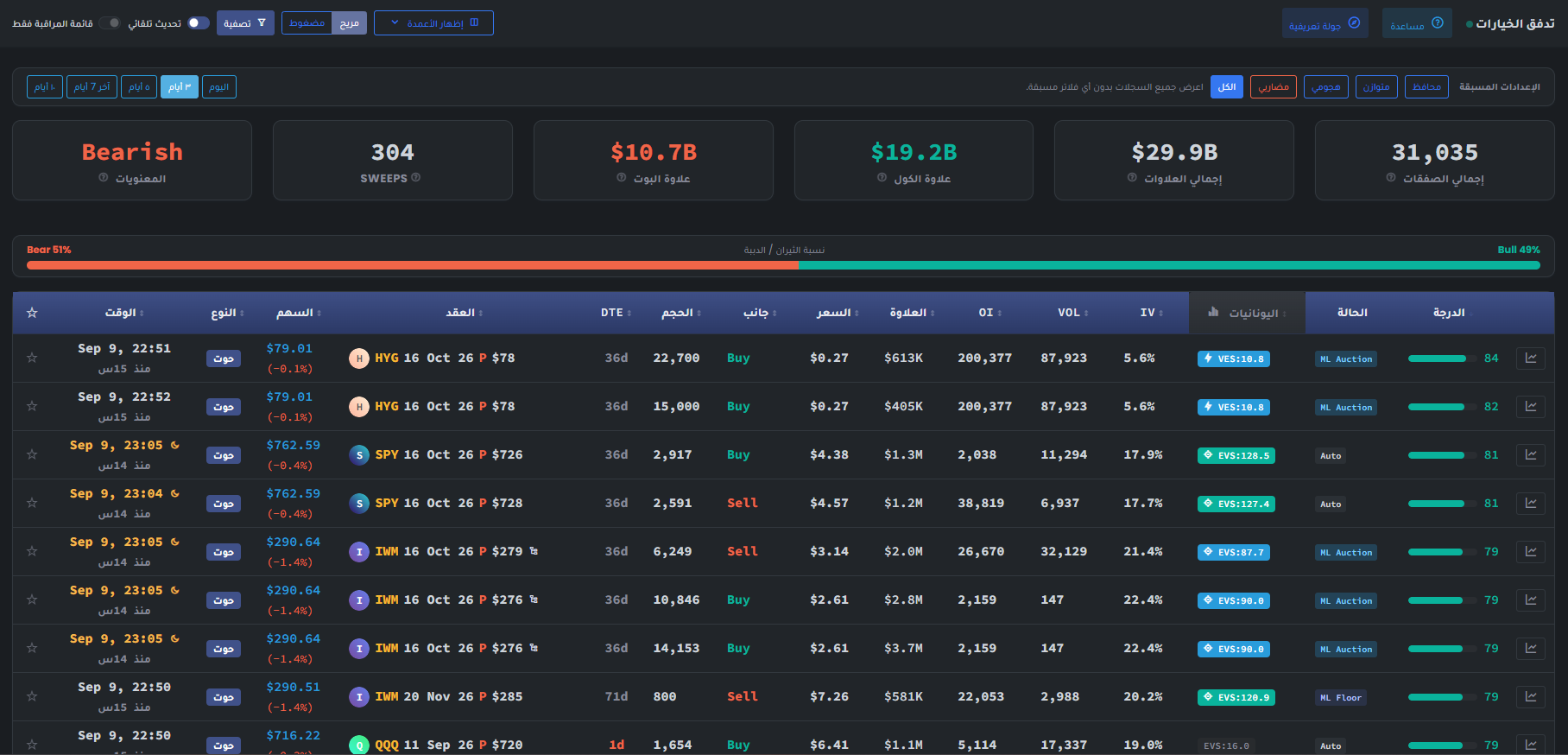
- Choose a preset and lookback window first. Every total and row shown below inherits that filter context.
- Use Total Trades and Total Premium to judge sample size, then compare Call Premium, Put Premium, Sweeps, and the sentiment summary.
- The bull/bear bar summarizes the current filtered set. It is context, not a forecast, and can be dominated by a few large prints.
- In each row, read time and classification before the contract, DTE, size, side, price, and premium. Cluster and Whale describe observed execution patterns.
- Compare OI, volume, IV, Greeks-derived labels, condition codes, and score. A high score ranks the evidence; it does not prove direction or opening intent.
- Use the row chart action to compare the contract move with the underlying and reject stale, wide-spread, or event-distorted candidates.
Page components explained
Choose a starting filter and period
Presets apply a ready-made selection of filters. Review the active settings, then choose how far back to look. Counts and totals should be read in that selected context.
Narrow the contract list
Start with a symbol or watchlist, then choose call/put and expiry. Add premium, volume, strike or days-to-expiry limits gradually. If the list is empty, relax one filter at a time. An empty list means no matches for these settings, not that the market has no opportunities.
Compare contract characteristics
These filters narrow contracts by the displayed scores, price sensitivity, volatility rank and leverage. Higher scores are not a measured chance of profit. Check the contract explanation and any missing-data notice before comparing two readings.
Events before expiry
Use earnings and dividend filters to find contracts near a company event. Check whether its date is confirmed or estimated and whether it falls before expiry. An event can change both the stock price and the option's implied volatility.
Your saved selection
Watchlist filters restrict results to your saved underlying stocks. Saved contracts restrict them to individual option contracts you bookmarked. These are different selections; a stock can have many strikes and expiries.
Flow summary
Use trade count and premium totals to size up the displayed activity. Calls versus puts and the estimated execution side are different classifications. Large premium does not prove a new directional position.
Read an options trade
Match the contract and expiry, then compare time, size, premium and execution side. Sweep, block and multi-leg describe execution patterns, not certain bullish or bearish intent. Open the chart or grouped detail for context.
Grouped executions
Inspect the individual executions behind the group. Related timing or structure can explain why several prints appear together; do not count a grouped total and its members as separate activity.
Automatic refresh
Refresh checks for new readings. It does not make an old source current. Check the reading's timestamp and any warning before using it.
Language
Use the flag to switch the interface language. Check the currency shown on subscription and payment pages after changing language; trading symbols keep their original spelling.
Light and dark mode
Choose the appearance that makes text and chart details comfortable to read. Changing the theme affects the display, not the underlying data or signals.
Page layout
Use this control to change the available page layout. It changes how much space the interface uses, not the meaning of the displayed values.
Fullscreen
In the signed-in app, expand the site to gain more room for charts and tables. Use the control again or Escape to leave browser fullscreen.
Notification bell
Review recent notifications and their timestamps here. The badge counts unread notifications; it is not a count of unreviewed trading opportunities. Delivery channels and rules are managed in alert subscriptions.
Account menu
Open account settings, subscription details and other personal links here. Use sign out when you finish on a shared device.