


Stock Watchlists Guide
العربيةLearn to create lists, add symbols, import candidates, compare metrics, and remove stale ideas.
After finding interesting stocks, use watchlists to keep them organized and easy to revisit. Separate different ideas into named lists, compare the latest price and context, and open a stock's chart when its situation changes. Adding a symbol does not place a trade or create a brokerage position.
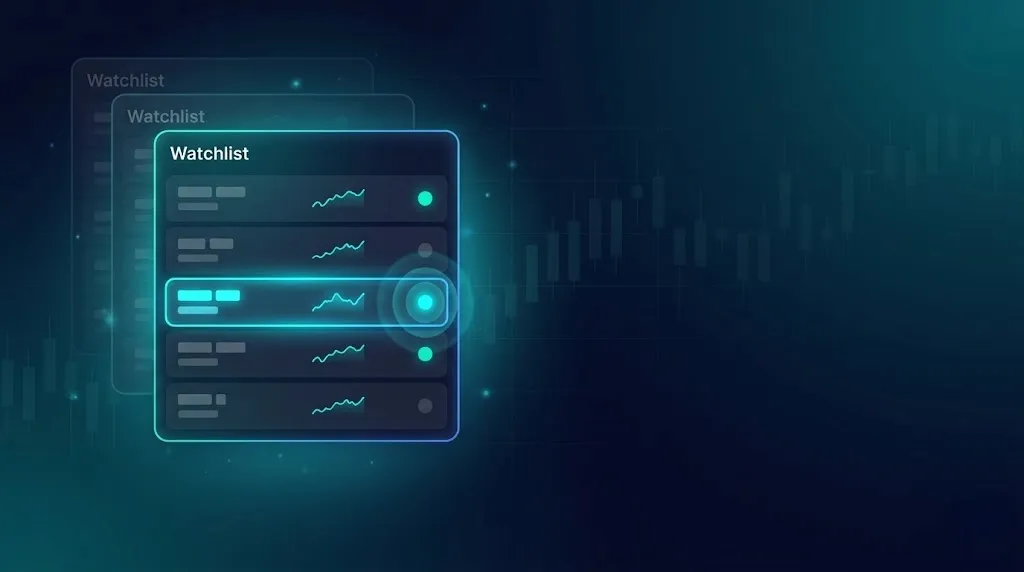
What the page shows
| Field or control | How to use it |
|---|---|
| Watchlist selector | Switches between named lists and makes the active list explicit. |
| Create, rename, and delete | Manage list purpose; deletion removes the list, not market data or a brokerage position. |
| Add or remove symbol | Changes membership within plan limits and any allowed-symbol rules. |
| Import from screener | Copies supported screener candidates into a list; imported rows still require review. |
| Price and change | Show the latest available market movement and update state. |
| Scores, news, and block trades | Provide compact context; open the owning page for full evidence. |
| Open chart | Moves from monitoring to detailed investigation. |
Recommended workflow
- Create a list with one clear purpose and horizon.
- Add symbols from direct research or a reviewed screener result.
- Record mentally or externally why each symbol belongs and what invalidates it.
- Sort and filter to find changes, then open the chart or related evidence.
- Remove stale symbols and archive the thesis outside the watchlist if needed.
- Keep stock and options watchlists conceptually separate because their lifecycle and expiry risks differ.
How to interpret the result
- A watchlist star means saved for monitoring, not bought or endorsed.
- Different lists can contain the same symbol for different strategies.
- Plan limits and allowed-symbol rules can affect creation and membership.
Common mistakes
- Turning one long list into an unreviewed backlog.
- Keeping symbols after the original thesis expired.
- Confusing stock watchlists with contract-specific options watchlists.
Risk and limitations
Related guides
Search, select, and move
Use search and the compliance, direction, GEX, and radar filters to narrow the list. Choose the columns you need. Selecting multiple symbols reveals copy, move, and delete actions; check the selected symbols and destination list before a bulk action.
Price change, GEX and BV Δ: why can they disagree?
The watchlist combines different views of a stock, not three answers to the same question. Gainers and Losers filter the row's percentage price change. The GEX filter selects the gamma reading's Buy, Sell or Neutral bias. BV Δ describes the difference between classified buying and selling volume, not price change or gamma exposure.
Read BV Δ
A positive value means buying volume exceeds selling volume in that reading; a negative value means the reverse. It is not profit or a count of buyers. The bar length compares the absolute delta with the largest delta in the loaded watchlist, not a guaranteed percentage of market control.
Which period does it cover?
The list uses each stock's latest available date. If that date contains multiple sessions, it selects the session with the largest combined buying and selling volume; it does not add every session together. Freshness can differ between symbols, so do not automatically treat it as today's full-day total.
What is the percentage in parentheses?
It compares volume delta with the stock's preceding recorded delta, not buying's share of total volume. Records are ordered by date and session, so the comparison can be another session that day or an older date when days are missing. For example, delta moving from 1,000 to 1,500 gives 50%. If no prior record exists or its delta is zero, the tool displays zero; that does not prove activity was unchanged. A negative preceding delta can make the percentage's sign unintuitive. Read the delta itself first, and do not treat this percentage as a Buy or Sell bias.
Fictional example: price change +1%, GEX bias Sell, and negative BV Δ. These need not contradict one another: the stock is above its comparison price, while gamma and volume describe other aspects and may have different timestamps. Open the chart, GEX and volume details to check timing. Agreement between two columns is not a guarantee either.
A dash or a stock missing after filtering
A dash in BV Δ means no reading is available, not equal buying and selling. Missing GEX is not Neutral GEX. A symbol without a matching GEX reading will not pass a GEX-bias filter. Clear that filter to check that the stock is still in your list, then open the underlying tool to investigate the data; a missing reading is not a reason by itself to remove the symbol.
Page components explained
Choose and populate a list
Select the intended list before adding a symbol. Separate lists by your own purpose, such as sectors or stocks awaiting confirmation. Adding a stock does not place an order.
Focus the watchlist
Filter within your list by symbol or the available compliance, direction, gamma and radar context. Filters hide nonmatching rows; they do not remove the saved stocks.
Compare your stocks
Read price and change alongside news, radar, block-volume and gamma context. Open the stock or relevant detail before acting on a badge. Different columns may come from different timestamps.
List actions
Check selected rows before copying, moving or deleting saved items. Importing recommended symbols adds a starting list; it is not a personalized recommendation to trade them.
Old or partial watchlist data
This notice means some information is not current or complete. Retained values can help you review the list, but check freshness before comparing stocks or making a decision.
Language
Use the flag to switch the interface language. Check the currency shown on subscription and payment pages after changing language; trading symbols keep their original spelling.
Light and dark mode
Choose the appearance that makes text and chart details comfortable to read. Changing the theme affects the display, not the underlying data or signals.
Page layout
Use this control to change the available page layout. It changes how much space the interface uses, not the meaning of the displayed values.
Fullscreen
In the signed-in app, expand the site to gain more room for charts and tables. Use the control again or Escape to leave browser fullscreen.
Notification bell
Review recent notifications and their timestamps here. The badge counts unread notifications; it is not a count of unreviewed trading opportunities. Delivery channels and rules are managed in alert subscriptions.
Account menu
Open account settings, subscription details and other personal links here. Use sign out when you finish on a shared device.