


Dashboard Guide
العربيةLearn how to use the dashboard as a market briefing without treating its cards as trade signals.
Start here when you need to decide what deserves your attention today. The dashboard brings market conditions, sectors, watchlists, news, options, and radar activity together. Use the cards to choose a few items to investigate, then open the underlying tool for the details and timestamp.
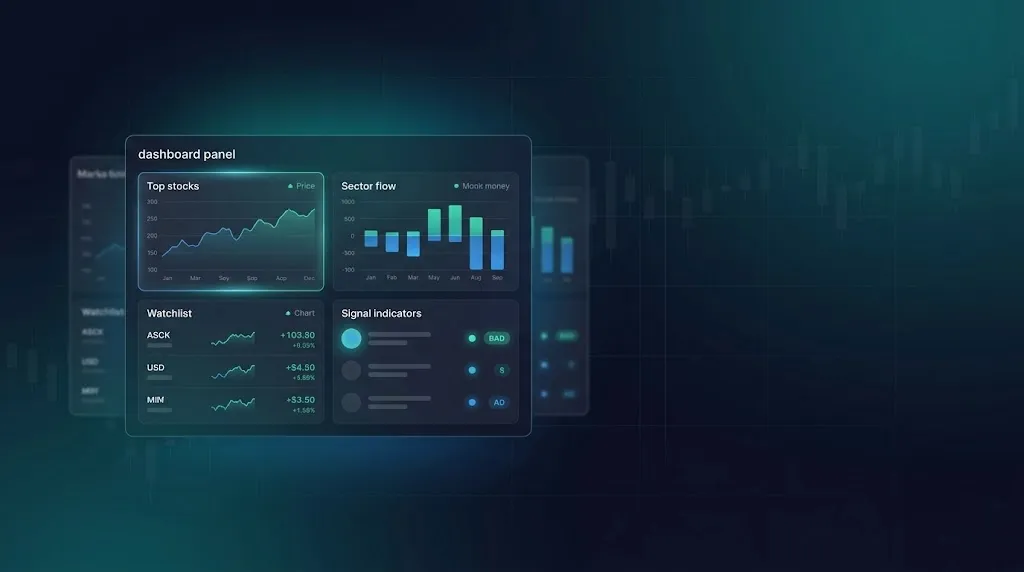
What the page shows
| Field or control | How to use it |
|---|---|
| Market overview | Shows the latest available index and breadth context; verify timestamps and market session. |
| Watchlist | Surfaces symbols you chose to monitor and links to the full stock-watchlist workspace. |
| Radar heatmap | Summarizes recent radar activity; open a radar to inspect its exact conditions. |
| Sector flow | Compares relative sector activity and direction over the selected window. |
| Options pulse | Summarizes options activity; use the dedicated options tools for contract-level evidence. |
| News pulse | Shows recent headlines and sentiment context with links to the full news page. |
| Block trades | Highlights large reported stock prints; open Selected for execution details and condition codes. |
Recommended workflow
- Confirm the market session and the update time shown by each card.
- Scan breadth, sectors, and your watchlist to identify where activity is concentrated.
- Open the owning page for any card that matters; do not decide from the compact summary alone.
- Compare price structure, liquidity, news, and independent radar or options evidence.
- Refresh after a material market move because cards do not all share the same update cadence.
How to interpret the result
- Agreement across independent cards can justify deeper review, but duplicated data does not count as independent confirmation.
- An empty or delayed card can reflect data availability rather than the absence of market activity.
- Dashboard rankings are navigation aids, not recommendations or suitability assessments.
Common mistakes
- Comparing cards without checking their timestamps.
- Treating a top-ranked symbol as an entry signal.
- Assuming every dashboard card uses real-time data.
Risk and limitations
Related guides
A quick market review
Start with the market, then sectors and your own symbols. Open the chart, source news, and radar behind an interesting stock. Decide why it deserves attention and what would make you drop the idea.
Page components explained
Market overview
Start with market status and the index overview to put individual stock moves in context. Check the date and session before treating the summary as a current-market reading.
Market context and signal bias
Market Climate uses SPY, QQQ and VIX, while Sector Rotation compares XLK, XLE and XLF. Radar Signal Bias is a separate summary of available radar signals, not a measured probability of the market rising.
Stock and options radars
Compare radar activity while keeping stock and options signals separate. Open the relevant radar to inspect symbol, timestamp, direction and timeframe; counts alone do not measure signal quality.
Options activity summary
Compare put/call activity, unusual trades and gamma context. They describe different parts of the options market and can disagree. Open the relevant tool for contract and expiry details.
Sector movement and activity
Compare which sectors lead or lag, and distinguish percentage price change from volume share. A large area or strong color must be read using that chart's measure.
Your watchlist at a glance
Choose a list and compare its stocks, then open the chart for closer review. Use the full watchlist page for broader organization and filtering.
Market news
Check the headline, age and source before opening a story. News sentiment summarizes the coverage, not a guaranteed price response.
Recorded daily movers
Review the period and method displayed with this table. Historical moves are observations, not returns a trader necessarily captured or evidence that the next signal will repeat them.
Largest displayed moves
Use the list to find stocks for further review. A large past move may already have happened; inspect current price, liquidity and news before forming a view.
Language
Use the flag to switch the interface language. Check the currency shown on subscription and payment pages after changing language; trading symbols keep their original spelling.
Light and dark mode
Choose the appearance that makes text and chart details comfortable to read. Changing the theme affects the display, not the underlying data or signals.
Page layout
Use this control to change the available page layout. It changes how much space the interface uses, not the meaning of the displayed values.
Fullscreen
In the signed-in app, expand the site to gain more room for charts and tables. Use the control again or Escape to leave browser fullscreen.
Notification bell
Review recent notifications and their timestamps here. The badge counts unread notifications; it is not a count of unreviewed trading opportunities. Delivery channels and rules are managed in alert subscriptions.
Account menu
Open account settings, subscription details and other personal links here. Use sign out when you finish on a shared device.